Canceled the Monitor Order: Two Weeks With a Junk-Drawer iPad as My Mac's Second Screen
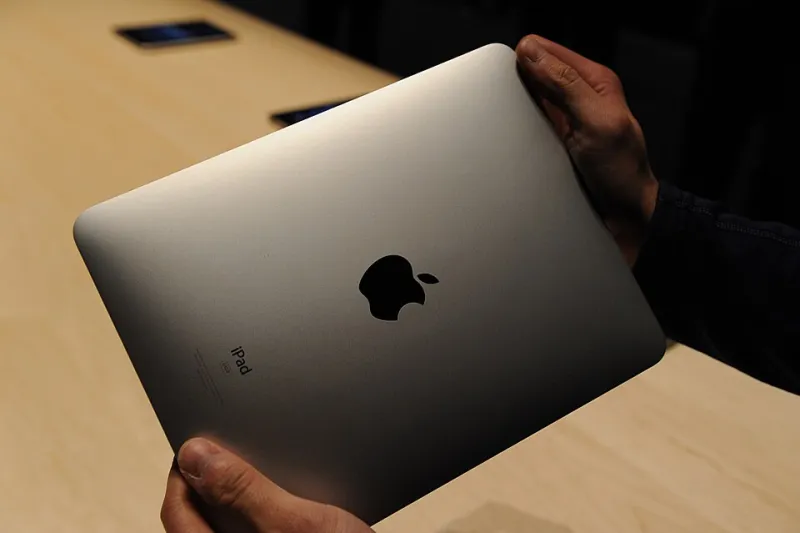
Photo: matt buchanan, CC BY 2.0, via Wikimedia Commons
The monitor had been in my cart for eleven days. A 27-inch 4K panel, roughly $400 after the sale price, plus an arm and a cable, plus the quiet knowledge that my desk already has one screen on it and a perfectly good iPad Air from 2020 sitting in a drawer because the battery case cracked and I never got around to replacing it.
So before I clicked buy, I gave the iPad two weeks to earn the job. I canceled the order on day nine.
Sidecar is not a secret, it's just ignored
Apple's built-in feature for using an iPad as a Mac display has been around since macOS Catalina, which means it's been sitting in the menu bar this whole time while people buy third-party apps to do the same thing. You turn it on from Control Center: Screen Mirroring, then pick your iPad. Or open Displays in System Settings, hit the plus button, and add it as a separate display rather than a mirror.
The requirements are the usual Apple ecosystem checklist: both devices on the same Apple ID with two-factor authentication on, Wi-Fi and Bluetooth enabled on both, Handoff on, and within about 30 feet of each other. If any of those are off, the option simply won't appear and you'll spend 20 minutes convinced your Mac is broken.
Wired versus wireless is a real decision
My first attempt was wireless. It worked in about four seconds and looked great — crisp text, correct scaling, no setup wizard. But moving the cursor across the two screens had a slight rubber-band feel, and dragging a window across took a beat longer than it should.
Then I plugged in a USB-C cable and the difference was immediate. Latency dropped to something I stopped noticing, the connection stopped caring about my crowded apartment Wi-Fi, and the iPad charged instead of draining. If you're going to do this for hours a day, use a cable. Ten bucks, no drama.
One caveat worth stating plainly: the iPad has to be recent enough. Anything from the sixth-generation standard iPad or the third-generation iPad Air onward will work. Older models are out of luck.
The desk setup that made it feel intentional
The thing that turns an iPad-from-a-drawer into a usable second screen is not software. It's angles.
I bought a $19 aluminum tablet stand with an adjustable hinge and set the iPad to the left of the laptop, tilted back about 20 degrees, roughly at the same height as the MacBook's screen. That single change did more than any setting. Before the stand, I was propping the iPad against a coffee mug and craning my neck, which is exactly the ergonomic disaster that makes people give up on this idea.
I already had a spare USB-C cable. Total spend: $19. Compare that to $400 for the monitor, or $450 with the arm and cable.
Where it genuinely works
This is not a compromise setup. For a specific set of tasks, a 10.9-inch iPad next to a laptop is better than a cheap second monitor.
Text-heavy work. Sidecar renders text at the iPad's native pixel density — around 264 pixels per inch. A $250 24-inch 1080p monitor looks like a screen door by comparison. Reading a long PDF or a Slack thread on the iPad is genuinely pleasant.
Reference material. Documentation, a style guide, a spreadsheet I'm copying numbers from, a client's brief. Glance right, glance left. No window shuffling.
Apple Pencil markup. This is the sleeper feature. Sidecar supports Pencil, which means I can annotate a contract PDF or sketch over a screenshot directly on the second display without exporting anything. I used it more than I expected to.
Email, calendar, notes, and the endless scroll. All of it lives comfortably on a screen that isn't my main workspace.
Where it falls apart
Color-critical anything. The iPad's display is genuinely good — wide color, high brightness — but Sidecar compresses the signal and you have no calibration control. If your work involves matching a Pantone chip, close this tab and buy the monitor.
Timelines and dense UIs. A video editing timeline or a complex 3D viewport on a 10.9-inch screen is a thumbnail, not a workspace. The 12.9-inch iPad Pro is meaningfully better here, but it also costs more than a good monitor.
Long sessions. My MacBook's battery drain went up noticeably with the second display active — call it somewhere between 8 and 12 percent per hour of extra draw, and the fans made themselves known during heavier work. The iPad, plugged in, stayed full. Unplugged, it dropped fast.
Permanence. A real monitor is always there, never needs charging, and can't wander off to the couch with a family member. My iPad setup has a daily failure mode that a monitor does not: someone else wants the iPad.
The math that killed the order
A decent 4K 27-inch display, an arm, and a cable is $400 to $500. A used 2020 iPad Airs in working condition sell for $200 to $260 — but I already owned one, which makes the marginal cost of this whole experiment $19 and a cable I had in a box.
Could I have bought a cheaper 24-inch 1080p monitor for $130? Sure. But it would have looked worse than the iPad, occupied permanent desk real estate, and needed its own power brick. The iPad tucks into a drawer when guests come over.
The verdict, six weeks later
I would buy a real monitor tomorrow if my work shifted toward photo retouching or long-form video editing. For writing, email, research, client calls, and the general shape of a knowledge-worker day, the iPad is a better second screen than a budget monitor and a nearly free one if you already own it.
Go dig it out of the drawer. Buy a stand. Skip the $400.