Your iPhone Is the Reason Your Mac Feels Slow — Here's the 5-Minute Fix
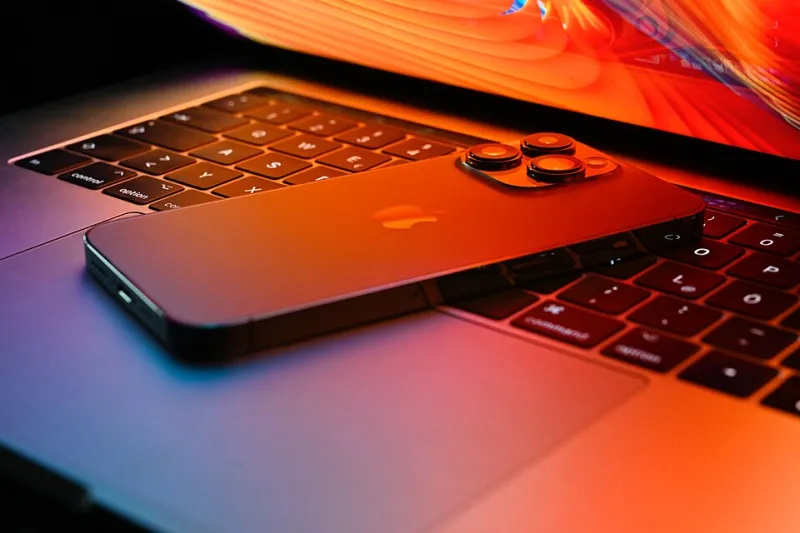
Photo: SimonWaldherr, CC BY-SA 4.0, via Wikimedia Commons
There's a moment every Mac user knows: you sit down to work, your iPhone buzzes for the fourth time in ten minutes, a FaceTime call rings through on your laptop instead of your phone, and the Universal Clipboard pastes something you copied an hour ago. Suddenly your $1,500 MacBook feels sluggish — not because of the hardware, but because the ecosystem plumbing is working against you.
The good news? You don't need a settings deep-dive or a third-party app. Five minutes on your iPhone fixes most of it. Here's the exact routine I run whenever I set up a new iPhone or after a big iOS update scrambles everything.
Step 1: Tame Handoff Before It Tames You
Handoff is brilliant when you want it and maddening when you don't. Every app on your iPhone that supports Handoff advertises itself in your Mac's Dock, and every Safari tab follows you from phone to laptop whether you asked or not.
On your iPhone, go to Settings > General > AirPlay & Continuity and toggle Handoff off. Then turn it back on. That sounds silly, but the reset clears out stale app handoffs that tend to pile up — and while you're in there, decide honestly which Continuity features you actually use. If you've never once picked up a phone call on your Mac, disable Calls on Other Devices while you're at it. Same with Allow Calls on Other Devices under Settings > Phone.
Most people I talk to use maybe two of the six Continuity features. Turning off the other four removes a surprising amount of background chatter between devices.
Step 2: Route Notifications Where They Belong
Nothing makes a Mac feel slower than a phone that won't stop interrupting it. Every notification that mirrors from your iPhone to your Mac is a context switch, and context switches are the real productivity killer — not render times or app launches.
In Settings > Notifications, do a brutal triage. For each app, ask: does this need to reach me on both devices? For me, the answer is almost never. Messages and calendar alerts stay mirrored. Everything else — news apps, shopping apps, game invites from that one cousin — gets set to deliver quietly or gets turned off on the Mac side entirely.
Bonus move: under Settings > Notifications > Screen Sharing (or on the Mac in System Settings > Notifications), turn on Focus sync. When you set a Work Focus on your iPhone, your Mac goes quiet too. One tap silences the whole ecosystem instead of three.
Step 3: Fix Your Clipboard and AirDrop Habits
Universal Clipboard is one of those features that feels like magic until it doesn't — like when it pastes the wrong thing because your iPad grabbed the clipboard in between. There's no master switch to fix this, but there is a habit: after a big copy-paste job, clear your iPhone's clipboard. iOS will actually offer to do this automatically after a while, and letting it is a small quality-of-life upgrade.
While you're in wireless territory, open Settings > General > AirDrop and set it to Contacts Only. Every AirDrop request from a stranger at a coffee shop that pings your Mac is another tiny interruption you didn't ask for.
Step 4: Sync Your Hotspot Behavior
Here's one almost nobody touches: Settings > Personal Hotspot > Allow Others to Join, then flip on Maximize Compatibility only if you actually need it. On newer iPhones, leaving the hotspot in its default smart mode means your Mac connects faster and your phone doesn't burn battery keeping a radio band alive that nothing's using. If your Mac is your main computer and your iPhone is your backup internet, this one setting change is worth the trip alone.
Step 5: Restart the Handshake
Finally, the classic IT move that actually works: toggle Bluetooth off and back on on your iPhone, then give your Mac a restart. Half of the "my Mac feels laggy" complaints I hear trace back to a grumpy Bluetooth handshake between devices — stale connections to AirPods, an old Apple Watch pairing, a car that's still trying to sync. A clean restart forces everything to re-register, and things genuinely run snappier.
The Payoff
None of these steps touches your Mac's hardware, and that's the point. The iPhone-to-Mac connection is one of Apple's best selling points, but left on defaults it's noisy, chatty, and honestly a little needy. Five minutes of triage — Handoff pruned, notifications routed, AirDrop locked down, hotspot tuned — and the whole setup feels like it got a speed bump without a single dollar spent or a single macOS setting touched.
Try it tomorrow morning before you open your email. Your Mac won't benchmark any faster, but it'll feel like it did — and that's the metric that actually matters.