The Little Black Box in My Closet Runs My House Now: A Mac mini Server Diary
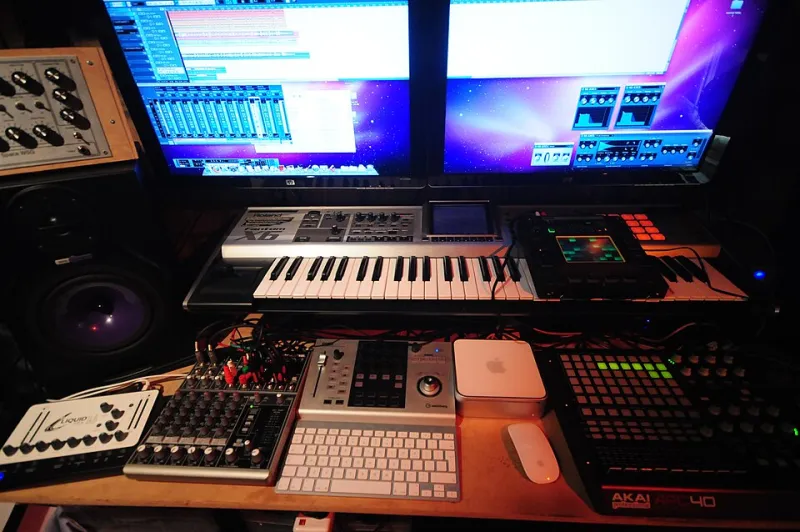
Photo: Dai Stanton, CC BY-SA 2.0, via Wikimedia Commons
Every house has a junk drawer. Mine has a junk closet, and until a few months ago, that's exactly where my 2018 Mac mini lived — a 3-inch slab of aluminum doing absolutely nothing between two boxes of holiday decorations. Today, that same machine hasn't been rebooted in 94 days, and it's the reason my family photos back themselves up, my movie nights never buffer, and my porch lights turn on before I even reach the driveway.
Here's the whole playbook, including the parts nobody tells you about.
Why a Mac mini Makes a Weirdly Great Home Server
The mini is the unsung hero of the Apple lineup for exactly this job. It sips power (more on that in a second), it's silent, it has no screen to ignore, and macOS gives you every server feature you'd actually want already baked in — file sharing, screen sharing, Time Machine destinations, the works. No subscriptions, no Linux rabbit hole unless you want one.
If you don't have a mini, an old MacBook works too. The one caveat: closed-clamshell MacBooks can be finicky about staying awake, so a cheap cooling pad and a caffeination utility solve most of it. But the mini is the cleaner answer.
Step One: Convince It to Never Sleep
A server that naps isn't a server. Go to System Settings > Energy (or Battery on laptops) and set "Prevent automatic sleeping when the display is off." Then install a free utility like Amphetamine or just run caffeinate from Terminal if you're the command-line type.
One more thing people miss: disable automatic updates or at least schedule them. There's nothing like a 3 AM macOS update rebooting your Plex server mid-movie.
The File Sharing Setup That Replaced My External Drive Shuffle
Under System Settings > General > Sharing, flip on File Sharing. Create a shared folder — I called mine "House" — and give each family member their own account so nobody can accidentally nuke anyone else's stuff.
From any Mac on the network, it shows up in the Finder sidebar. From an iPhone or iPad, the Files app connects via the same credentials. My wife streams raw video files off it for her editing projects without ever thinking about where they live, which is the highest compliment a server can get.
Bonus move: point Time Machine at a shared folder on the mini and every Mac in the house backs up to it automatically. That's the backup audit I keep preaching about, solved with hardware you already own.
Plex, and the Death of "Where's the Remote for the Thing"
Plex was the reason I pulled the mini out of the closet in the first place. Install the server app, point it at a folder of ripped and downloaded media, and every TV, phone, and tablet in the house gets a beautiful Netflix-style interface for your own library.
The 2018 mini transcodes 1080p without breaking a sweat. 4K remotes can stumble depending on the client, but for a household of mixed Apple TVs and iPhones, it's been flawless.
HomeKit Gets a Real Brain
This was the surprise MVP. A always-on Mac on your network means Home Assistant (if you're the hobbyist type) or even just reliable HomeKit hubs stop depending on whichever Apple TV happens to be awake. I run a handful of automations through Home Assistant in Docker on the mini — lights that follow actual sunset times, a "movie mode" that dims the living room when Plex starts playing, and motion alerts that actually arrive instead of arriving 45 seconds late.
If Docker sounds like too much, skip it. Even without Home Assistant, an always-on Mac means your iCloud-synced shortcuts and automations fire reliably across the house.
Getting In From Anywhere (Safely)
Remote access is where people get nervous, and they should. Do not just forward ports to your Mac — that's an invitation you don't want to send. Instead, I use Tailscale, a free VPN that creates a private network between your devices. Install it on the mini and your iPhone, and suddenly you can reach your files and screen from anywhere in the country as if you were on the couch. Setup takes ten minutes and requires zero networking knowledge.
What It Actually Costs to Run 24/7
I put a kill-a-watt meter on it because I'm that person. Idle with the display off, the 2018 mini draws about 10–12 watts. Under Plex load, it spikes to 30–40 watts briefly, then settles.
The math: roughly 11 watts average, 24/7, works out to about 8 kWh a month. At the national average of around 17 cents per kWh, that's under $1.50 a month. Less than a streaming service trial. A newer M-series mini would cost even less to run.
The Sunday It Earned Its Keep
Three weeks in, my sister-in-law called in a panic: her laptop died the night before a family reunion slideshow. The presentation? Backed up to the mini's shared folder via Time Machine the night before. I pulled the file from my phone in the parking lot of a brunch spot in Austin and AirDropped it to her husband's iPad. Reunion saved, hero status achieved, all from hardware that was three weeks away from a Facebook Marketplace listing.
Should You Do This?
If you have an old Mac gathering dust, yes — unambiguously yes. It's the rare project where the hardware cost is zero, the monthly cost is a latte's pocket change, and the payoff is a house that just... works. The mini in my closet isn't junk anymore. It's the hardest-working Apple product I own, and it doesn't even have a screen.