Cycle Count, Condition, and the Truth About Overnight Charging: Decoding Your MacBook's Battery
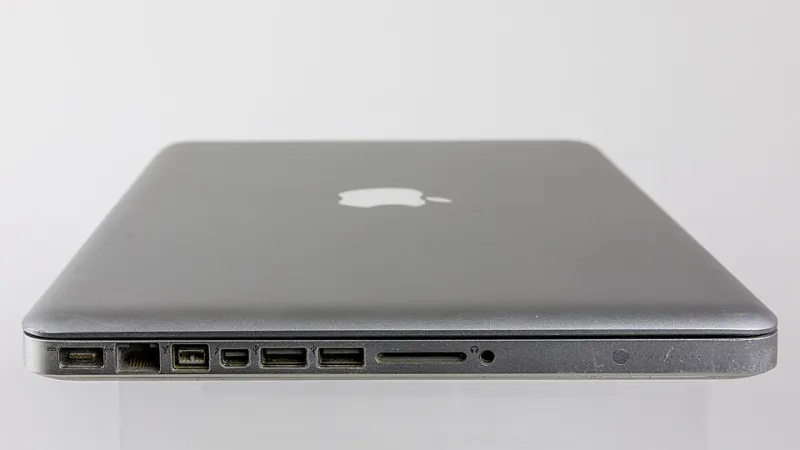
Photo: Raimond Spekking, CC BY-SA 4.0, via Wikimedia Commons
Every MacBook ships with a tiny diagnostics department running in the background. It tracks every charge, every temperature swing, every full drain — and then it files the results away in a menu almost nobody opens. If your laptop has been feeling like it fades faster than it used to, the answers are already on your machine. You just have to know where to look.
Where the Hidden Report Lives
The quickest route: hold down the Option key, click the Apple menu, and choose System Information. Click Power in the sidebar and you'll land on a page that reads like a patient chart.
A few lines matter most:
- Cycle Count — how many full charge-and-discharge cycles your battery has burned through
- Condition — Apple's one-word verdict: Normal, or something worse
- Full Charge Capacity — how much juice the battery can hold today versus when it was new
- Charge Remaining and Charging Power — useful for spotting weird behavior in real time
Here's the thing about cycles: a cycle isn't one charge. It's a full 100% worth of drain, accumulated. Drain from 100 to 50, plug in, drain again tomorrow — that's one cycle. Apple rates modern MacBook batteries for 1,000 cycles, which for most people works out to three to five years of regular use.
Reading Between the Numbers
Condition says Normal? Breathe easy. But don't stop there. Compare Full Charge Capacity against the original spec. If your laptop shipped with a 5,000 mAh design capacity and now tops out at 3,800, you're at roughly 76% of original health. That's the difference between "my battery is fine" and "I carry a charger everywhere."
Want a friendlier interface? A free utility like CoconutBattery shows the same data plus a running history, so you can actually watch degradation over months instead of guessing. iStat Menus puts battery health in the menu bar if you like constant reassurance (or constant anxiety).
The Swelling Question
Battery swelling isn't random — it's chemistry failing in slow motion. Warning signs worth taking seriously:
- The trackpad starts sticking or sitting higher than usual
- The bottom case bulges or the laptop rocks on a flat desk
- The case gaps near the hinge
- Battery life falls off a cliff in a short window
If you notice any of these, stop using the machine for heavy work and get it looked at promptly. A swollen lithium battery is a pressure vessel with bad manners — don't press on the trackpad to test it, and don't try to pop it open yourself. Apple and most independent repair shops handle replacement safely, and on modern MacBooks the battery replacement is a routine job.
Busting the Charging Myths
Let's clear the folklore out of the way:
- "Leaving it plugged in ruins the battery." Mostly false. Modern Macs manage charging intelligently, and macOS's Optimized Battery Charging (Settings → Battery) learns your routine and delays charging past 80% until you need it. Keep it on.
- "You need to drain it to zero sometimes." No. Deep discharges stress lithium cells. Shallow is better.
- "Always charge to 100%." Optional at best. If you mostly use your MacBook at a desk, capping the charge around 80% extends life. Some utilities can enforce this; newer macOS versions have a built-in charge limit option on supported models.
- "Third-party chargers will destroy it." A quality USB-C charger with enough wattage is fine. The gas-station no-name brick is the one to skip.
Repair, Replace, or Live With It: A Simple Framework
Run your numbers, then decide:
Just deal with it if cycle count is under ~600, capacity is above 85%, and you rarely stray far from an outlet. Battery anxiety is optional; a charger in the backpack is cheaper than a service appointment.
Repair the battery if capacity has dropped below 80%, cycles are past 1,000, or you see swelling symptoms. Apple's battery service runs roughly $130–$250 depending on model, and for a machine you plan to keep another two years, that math almost always works out.
Replace the Mac if the battery is the least of the machine's problems — if it's a pre-Intel-retirement model that can't run current macOS, a battery swap is putting a new heart in a body with other issues. Put the money toward the next machine instead.
One Last Habit
Check the Power pane once every few months, the way you'd check the oil on a car you care about. Batteries degrade gradually enough that you won't notice the slide day to day — but the numbers will, and now you know how to read them.