Your Mac Is Begging for a Storage Cleanout: My Zero-Cost Declutter Playbook
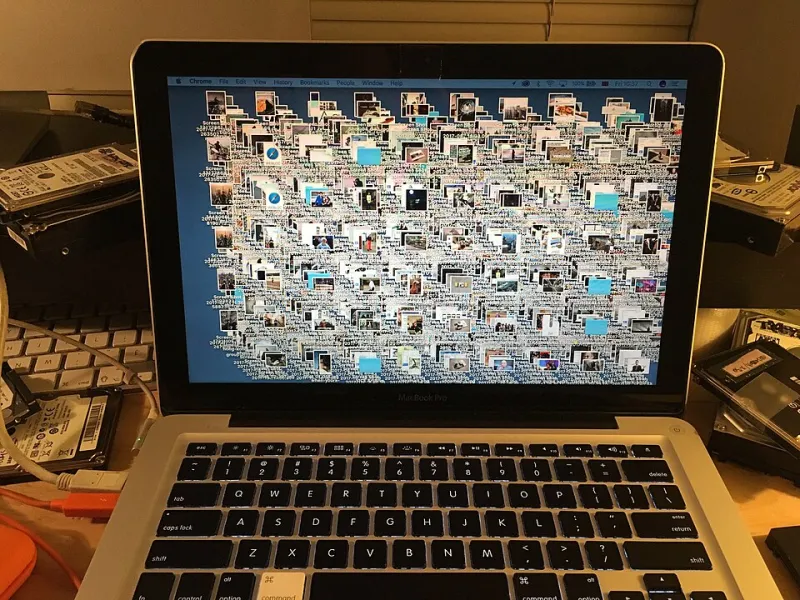
Photo: Wikissed, CC BY-SA 4.0, via Wikimedia Commons
Every few months, my mom calls me in a panic: her MacBook won't update, there's no room for anything, and Apple's cheerfully offering to solve it for $2.99 a month. Look, iCloud+ is fine. But most people hitting that wall don't actually need more cloud space — they need to deal with what's already on the machine. I ran the numbers on my own 256GB MacBook Air and clawed back 83GB in one afternoon. Here's the playbook, start to finish.
Step One: Find Out What's Actually Eating Your Drive
Don't guess. Click the Apple menu, go to About This Mac > Storage, then hit Settings. You'll get a color-coded breakdown: Applications, Documents, System Data, and the dreaded gray blob of "System Data" that seems to grow like a weed.
In my case, System Data was sitting at 47GB. That number alone sends people running to buy storage. Don't. Most of it is recoverable.
The Usual Suspects (and How to Evict Them)
Old iOS backups. If you've ever plugged an iPhone into your Mac, there may be several gigabytes of device backups hiding in ~/Library/Application Support/MobileSync. Backups from phones you don't own anymore? Delete them.
Caches and logs. Apps like Spotify, Slack, and Discord cache aggressively. ~/Library/Caches is fair game to prune — apps will rebuild what they need.
Downloads folder archaeology. Mine had three years of DMG installers, duplicate PDFs, and a 4K video I genuinely cannot explain. A 15-minute sort by date cleared 20GB.
Optimize Storage. Under Storage settings, enable "Optimize Mac Storage" and "Empty Trash Automatically." These are free, built-in, and most people never flip them on.
Use Free Tools That Do the Heavy Lifting
You don't need a paid utility. Two free options cover 90% of it:
- OmniDiskSweeper or the built-in
ducommand in Terminal to visualize what's hogging space - FreeFileConverter-style web tools aside, simply compressing old photo libraries or archiving projects to a $30 external SSD beats a recurring subscription every time
The math is simple: iCloud+'s 200GB tier runs about $36 a year, forever. A decent external drive is a one-time cost and works with any computer you'll ever own.
When Paying Actually Makes Sense
I'm not anti-iCloud. If you're shooting ProRes video on an iPhone, sharing a photo library with family, or juggling multiple devices, iCloud+ is genuinely worth it — the sync and backup value is real. My rule of thumb: if you'd pay for storage three years running, the subscription wins. If it's a one-time cleanup you need, do the free work first.
The 10-Minute Monthly Habit
Once you've done the deep clean, keep it that way. First Monday of every month: empty the trash, check the Downloads folder, glance at System Data, and delete one app you haven't opened. That's it. My Mac has hovered around 60% capacity ever since, and my wallet stays closed.