My iCloud Filled Up Mid-Deadline and It Almost Cost Me the Gig: A Field Guide to Not Letting That Happen to You

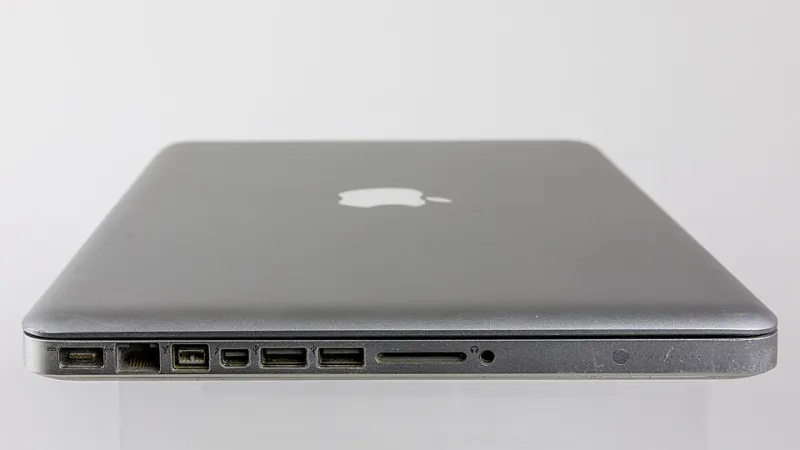
Photo: PantheraLeo1359531, CC BY 4.0, via Wikimedia Commons
It happened on a Tuesday afternoon, the way these things always do. I was wrapping up a client deliverable due the next morning when my Mac tossed up a notification I'd been swiping away for weeks: iCloud Storage Full.
I'd ignored it because, honestly, who hasn't? But this time the consequences landed all at once. My Desktop and Documents folders stopped syncing. My iPhone backup — last successful run, eleven days earlier — had been failing silently. And when I tried to pull one photo into the deliverable, I discovered my Photos library had become a gallery of gray placeholder thumbnails that refused to download.
Here's the thing nobody tells you: iCloud doesn't warn you loudly. It just quietly stops doing its job, and you find out when it matters most.
What Actually Breaks When You Hit the Wall
Apple's free 5GB tier is generous-sounding until you realize how fast it evaporates. Once you're over the limit, several things fail in sequence, and none of them are obvious:
- Device backups stop. Your iPhone and iPad simply stop backing up. No red banner, no daily nag after the first one. You only discover the gap when you're setting up a new phone and realize your last backup predates your latest photos, messages, and app data.
- Photos becomes a hostage situation. New photos upload fine to your device but never make it to the cloud. Worse, if you'd optimized storage on your Mac, older full-resolution originals live only in iCloud — and if syncing is broken, some edits and imports can behave unpredictably.
- Desktop & Documents sync freezes. Files edited locally on your Mac stop propagating. If you also work from an iPad, you'll see stale versions of documents and have no idea which copy is current.
- iMail and app data balloon. Mail attachments count against your quota, and a decade of newsletters can quietly eat 2GB on its own.
The cruel irony: the more faithfully you commit to Apple's ecosystem — syncing everything, optimizing everything — the harder you fall when the quota runs out.
Step One: Figure Out Where the Space Actually Went
Before you panic-upgrade to the 2TB plan, audit. Go to System Settings > [Your Name] > iCloud > Manage Account Storage on your Mac. This screen is the single most useful and least-known page in macOS.
In my case, the breakdown was embarrassing:
- Photos: 78GB. Years of Live Photos and video.
- iCloud Drive: 31GB. Including a 9GB folder of old client archives I forgot existed.
- Backups: 14GB. Two ancient iPhone backups from devices I no longer owned.
- Mail: 3GB. Attachments from a previous job.
Twenty minutes of deleting dead device backups and old Mail attachments freed up 17GB — before I spent a dime.
Step Two: Decide Whether to Pay or Prune
Apple's tiers are 50GB for $0.99/month, 200GB for $2.99, and 2TB for $9.99. For most working professionals, the 200GB tier is the sweet spot — it's less than a fancy coffee per month and covers a Photos library plus documents comfortably.
But before you upgrade, ask yourself: does everything need to live in iCloud? For me, the answer was no. Large video projects and archival client work now go to an external SSD and Backblaze. iCloud is for active work and photos, not a dumping ground.
If you want to stay on the free or cheap tier, a few moves go a long way:
- Turn off iCloud Photos on devices where you don't need the full library, and keep your archive on an external drive instead.
- In iCloud Drive, right-click bulky folders and choose Remove Download after copying them elsewhere — the local stub stays, the cloud weight goes.
- Delete stale device backups in Settings > [Your Name] > iCloud > Manage > Backups. That old iPad from 2019 is not coming back.
Step Three: Build a Quota That Can't Ambush You
The real fix isn't cleanup — it's making sure this never happens mid-project again. My system now has three rules:
Rule 1: Keep a 20% buffer. If my iCloud usage crosses 80% of my plan, I get a calendar reminder to audit. Storage problems should surface on your schedule, not Apple's.
Rule 2: Separate working files from archival files. Active projects live in iCloud Drive so they sync across my Mac and iPad. Anything older than a year moves to an external drive with its own backup. Cloud storage is a workspace, not a warehouse.
Rule 3: Check backup health monthly. One minute in Settings on your iPhone — tap your name, tap iCloud, tap your device — confirms the last backup date. Eleven days of silent failure taught me to check.
The Recovery Playbook, If You're Already Stuck
If you're reading this with a full quota and a stalled project, here's the order of operations:
- Upgrade immediately to the smallest tier that clears your overage — you can always downgrade later. This instantly unfreezes syncing and backups.
- Let everything download. Give your Mac an hour on good Wi-Fi to pull full-resolution files and current document versions before touching anything.
- Verify your files. Spot-check the documents in your active project across devices. iCloud conflicts occasionally create duplicate "conflicted copy" files — resolve them now, calmly.
- Then audit and prune, using the Manage Account Storage screen, before deciding whether to stay on the bigger tier.
The Bottom Line
iCloud is genuinely good infrastructure — the kind you stop noticing until it stops working. But its failure modes are silent, and the free tier is a trap for anyone with a Photos library and a pulse.
Five dollars a month and a quarterly ten-minute audit is the entire cost of never reliving my Tuesday. That's the cheapest insurance in the Apple ecosystem, and unlike AppleCare, you'll almost certainly use it.