The $100 Video Call Glow-Up: How I Turned My MacBook Into a Studio Worthy of a Morning Show
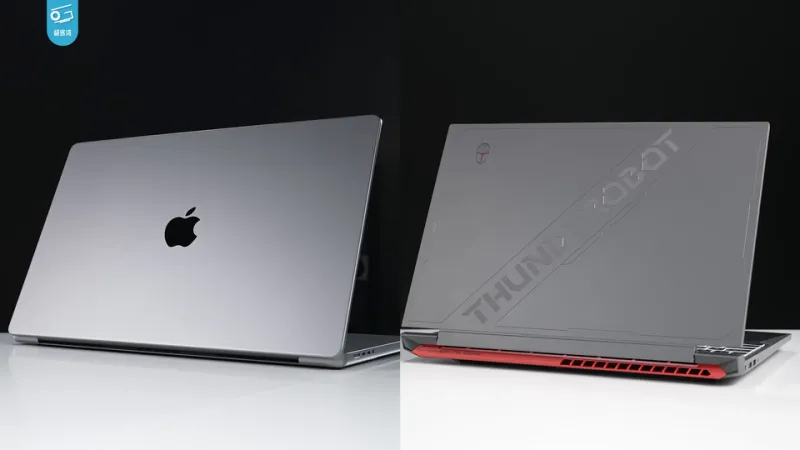
Photo: 极客湾Geekerwan, CC BY 3.0, via Wikimedia Commons
I hit my breaking point on a Tuesday. I joined a client call, and my face looked like it was being beamed in from a submarine — gray, grainy, half-lit by a window behind me that I'd completely forgotten about. Someone on the call politely asked if I was "somewhere quiet." I was at my desk. In my apartment. That I pay a lot of money for.
The internet will happily sell you a $300 dedicated webcam and a $200 key light, and sure, that stuff is nice. But I had a hunch I could get 90% of that polish for under a hundred bucks using stuff I mostly already owned. I spent a month testing the setup on everything from Zoom standups to FaceTime with my dad in Ohio. Here's the whole thing, budget breakdown and all.
Step 1: Ditch the MacBook Camera for Your iPhone (Free)
This is the single biggest upgrade, and it costs you nothing. Since macOS Sonoma, Apple lets you use a recent iPhone as a Continuity Camera, and the difference is genuinely embarrassing for the built-in webcam. The iPhone's sensor, autofocus, and image processing are just in a different league.
Here's how to set it up:
- Make sure both devices are signed into the same Apple ID with Wi-Fi and Bluetooth on.
- Mount your iPhone (more on mounts below).
- Open Zoom, FaceTime, or any video app, and pick your iPhone from the camera menu. It can even connect wirelessly.
A few settings worth flipping: in System Settings → Camera, enable Center Stage so the camera gently follows you when you lean around, and toggle on Studio Light if your room is dim — it digitally separates you from your background and brightens your face. It's a little magical and a little uncanny, but on dark winter mornings in my basement office, it saved me more than once.
Step 2: The Mount That Makes It All Work ($20)
Continuity Camera only shines if the phone sits properly on top of your display. I grabbed a Belkin-style iPhone mount that clamps onto a MacBook's lid — around $20 on Amazon, and there are cheaper generic versions if your iPhone model is covered.
One warning from experience: a phone mounted on a laptop lid gets warm, and a hot phone throttles its camera. If you're doing long calls, keep the phone charged but off a fast charger, and close background apps. Or do what I ended up doing — put the phone on a small tripod behind the laptop, angled over the screen. Same result, less heat.
Step 3: Light Yourself Like You Mean It ($25)
You don't need a Hollywood kit. You need one decent light pointed at your face, ideally from the front and slightly above. I bought a basic 10-inch ring light with a clamp arm for about $25, set it to the warm-white preset, and placed it just behind my laptop.
The free version, if you'd rather spend zero: face a window. Seriously. Turn your desk so the window is in front of you, not behind you. Half the bad-webcam horror stories out there are just people sitting with their backs to a bright window, turning themselves into silhouettes.
Step 4: Audio Matters More Than You Think ($30)
Here's the thing nobody tells you: viewers will forgive soft video long before they forgive bad audio. A $30 lavalier or budget USB mic does more for how "professional" you seem than any camera upgrade ever will.
If you want to stay fully free, macOS has a built-in trick — Voice Isolation mic mode. In Control Center while on a call, click Microphone and select Voice Isolation. It ruthlessly strips out keyboard clacks, fridge hum, and the neighbor's leaf blower. It's shockingly good for a setting most people have never opened.
Step 5: Tidy the Background (Free, But Requires Honesty)
Nobody needs to see your laundry chair. You have three options, in order of my preference:
- Rearrange your angle so the camera faces a bookshelf or a plain wall.
- Use macOS Portrait mode (same System Settings → Camera menu), which blurs your background softly — much more natural than Zoom's cutout-style backgrounds.
- Use a virtual background only as a last resort, because the edges around your hair will betray you.
The Full Budget
- iPhone as webcam (Continuity Camera): $0
- iPhone mount or cheap tripod: $20
- Clamp ring light: $25
- Budget USB microphone: $30
- Phone stand alternatives and a cable: ~$15
Total: roughly $90. If you already own a lamp that swivels and a phone tripod from a TikTok phase, you could do this for under $40.
One Month Later: The Verdict
The before/after is not subtle. Before, I was a grainy ghost lit from below like I was telling a campfire story. Now, coworkers have literally asked if I got a new camera. The iPhone handles my dim office, keeps me in frame when I lean back, and Voice Isolation means my space heater's battle rattle never makes it on air.
The best part is that nothing here is locked to one app. The Continuity Camera shows up system-wide, so it works in Zoom, Teams, FaceTime, and whatever app your company swears by this quarter. Your MacBook was closer to a studio than you thought — it just needed a hundred bucks and one afternoon.