Ten Friends, Zero Working Backups: The 30-Minute Mac Backup Audit Everyone Should Run
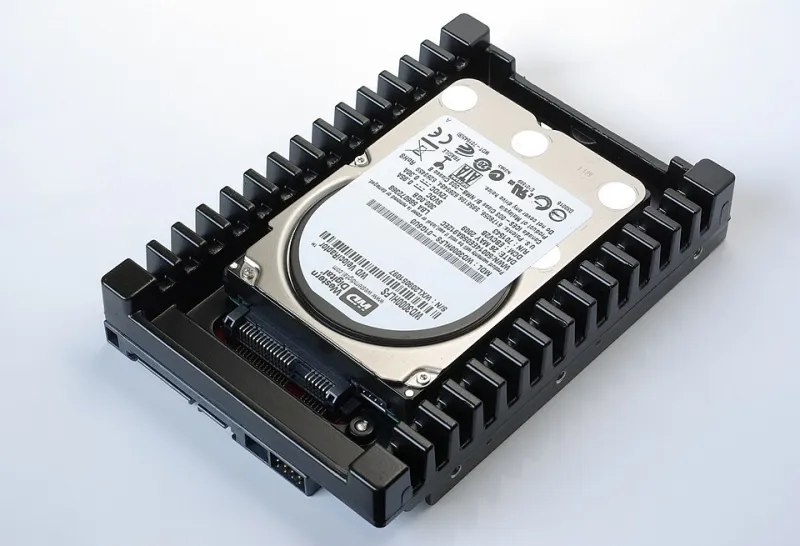
Photo: smial (talk), FAL, via Wikimedia Commons
Last month, at a friend's backyard cookout in Ohio, I asked what I thought was a simple question: "When did you last back up your Mac?"
The answers ranged from a blank stare to "does iCloud count?" to one guy who confidently said his Time Machine was set up — then checked and discovered the drive it pointed to had been unplugged since 2022. He'd been dragging files to it for three years, watching the little icon spin, and nothing was going anywhere.
Out of ten friends, exactly one had a backup system that would actually save them from a dead drive, spilled coffee, or a stolen laptop. One. These are college-educated professionals with six-figure salaries and smart doorbells. They are not dumb people. They just never audited their backups.
So here's the audit. It takes about 30 minutes, costs nothing if you already own a drive, and it's the difference between a bad afternoon and a catastrophic year.
Step 1: Figure Out What You Actually Have (5 minutes)
Open System Settings > General > Time Machine. Look at three things:
- Is a destination listed? If it says "Not Set Up," congratulations — you have zero backups and didn't know it. Skip to Step 3.
- When was the last successful backup? If it's recent, good. If it's months old, your drive is disconnected, full, or dead.
- Does the destination still physically exist? My cookout friend's drive was in a drawer, unplugged. Time Machine doesn't call you when it stops working.
Also check what iCloud is covering. System Settings > Apple ID > iCloud shows whether Desktop & Documents sync is on. That's real protection for those folders — but it's sync, not backup. Delete a file by accident, empty the trash, and iCloud deletes it everywhere. Sync keeps your files consistent across devices. A backup keeps your files safe from yourself.
Step 2: The Restore Test — The Step Everyone Skips (10 minutes)
A backup you've never restored from is a rumor. I've seen Time Machine show a healthy-looking backup while the underlying drive had corrupted sectors that made everything unrecoverable.
Here's a low-stakes test: pick a file you don't mind touching, rename it, then enter Time Machine from the menu bar and restore the original from an earlier snapshot. If the file comes back intact, your backups work. Do this once a quarter. Put it on the calendar next to your smoke detector battery check.
If Time Machine shows snapshots but the restore fails or hangs, that's your warning shot. Better to find out on a random Tuesday than the night before a flight when your MacBook won't boot.
Step 3: Build a Real 3-2-1 System (10 minutes)
The gold standard is 3-2-1: three copies of your data, on two different types of media, with one copy off-site. Here's the lazy-but-solid version for a Mac:
- Your Mac itself — copy one, the working set.
- An external drive with Time Machine — copy two. Any USB drive roughly 2x your Mac's storage works; plug it in, select it in Time Machine settings, done. Let it run weekly at minimum. I leave mine plugged in most evenings.
- A cloud tier for the irreplaceable stuff — copy three. iCloud covers Desktop and Documents if you've enabled it. For extra peace of mind on photos specifically, I know plenty of people who also keep a Google Photos or Amazon Photos mirror running in the background. Off-site matters because a house fire or burglary doesn't care how diligent your desk drawer drive is.
Total new spend: one external drive, usually $60–90 for a quality 2TB model. Cheaper than a single data recovery quote, which starts around $500 and ends wherever the lab says.
Step 4: Write Down the Recovery Plan (5 minutes)
Backups are only half the system. The other half is knowing how to get your life back. Grab a note (paper, since it survives a dead Mac) and write:
- Where the backup drive lives
- Your Apple ID and a recovery method
- What's synced where (iCloud, Photos, any work cloud storage)
- That macOS Recovery (hold the power button on Apple Silicon Macs until options appear) lets you restore from Time Machine during setup
When my sister's MacBook Air died the week of her wedding, she handed me her laptop and a sticky note. Twenty minutes on a loaner Mac and she had everything back, wedding spreadsheet included. That sticky note is the whole point.
The Panic Tax
Here's the thing I kept thinking about after the cookout: everyone I talked to knew, abstractly, that they should back up. They weren't ignorant — they were optimistic. And optimism is a fine strategy right up until the drive clicks, the laptop goes through airport security never to return, or iOS decides your Mac is the untrusted device.
Thirty minutes, one drive, one restore test. Then the next time a friend asks you "when did you last back up?" over burgers, you can be the smug one at the party. It's a good feeling. I recommend it.